Follow-ups (editor / responsible)
A follow-up is the durable “who does what” record born from an agenda point. It survives across meetings and keeps traceability to its origin point.
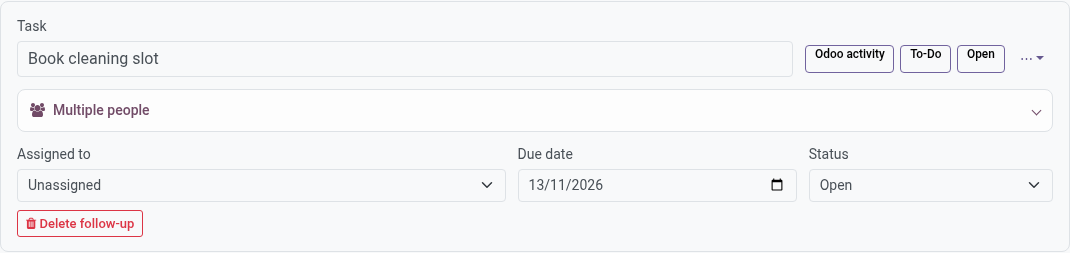
Creating one
In the live meeting, inside a point: Add follow-up →
- Title — the action itself (“Send minutes to legal”).
- Type — Odoo activity or native To-do (with the Project addon: also a project task) — restricted to the series’ allowed types.
- Assigned to — one person by default; Several responsible people under advanced options creates one activity per person.
- Due date.
Creating it notifies the owner through standard Odoo activities (systray clock).
The TODO rule
A TODO-type point cannot be resolved until it has an assigned follow-up with evidence:
| Follow-up kind | Counts as evidence when… |
|---|---|
| Odoo activity / To-do | The activity exists and is pending or completed for the owner. |
| Project task (Project addon) | A valid, assigned, non-cancelled task is linked. |
Note: “Having evidence” does not mean the work is finished — it means responsibility is recorded. Evidence cannot be deleted while a closed point needs it.
Living with a follow-up
- Status — Open / In progress / Done / Cancelled, editable from the live meeting, the meeting form’s Follow-up Actions tab, or the follow-up’s own form.
- Owner changes — editing the owner list re-syncs activities.
- Converting kind — the ⋯ menu converts e.g. an activity into a To-do, preserving history.
- Completing the activity updates the durable follow-up rather than deleting the evidence.
Review at the next meeting
Flag Review at next meeting (or postpone a point) and the follow-up becomes a review point in the next meeting of the series: same point identity, fresh discussion space, origin link From follow-up on the card.
Project tasks
With community_meetings_project installed, Create Task converts a follow-up
into a Project task (optionally linking an existing one). See
Project integration.
Task owners need access
A follow-up owner who is not a reader of the meeting cannot see its context. Editors should add them on the meeting’s Access tab.