Preparing a meeting (editor)
Two entry points: the New Meeting wizard (guided) or opening a series and pressing New Meeting there (same wizard, series pre-selected).
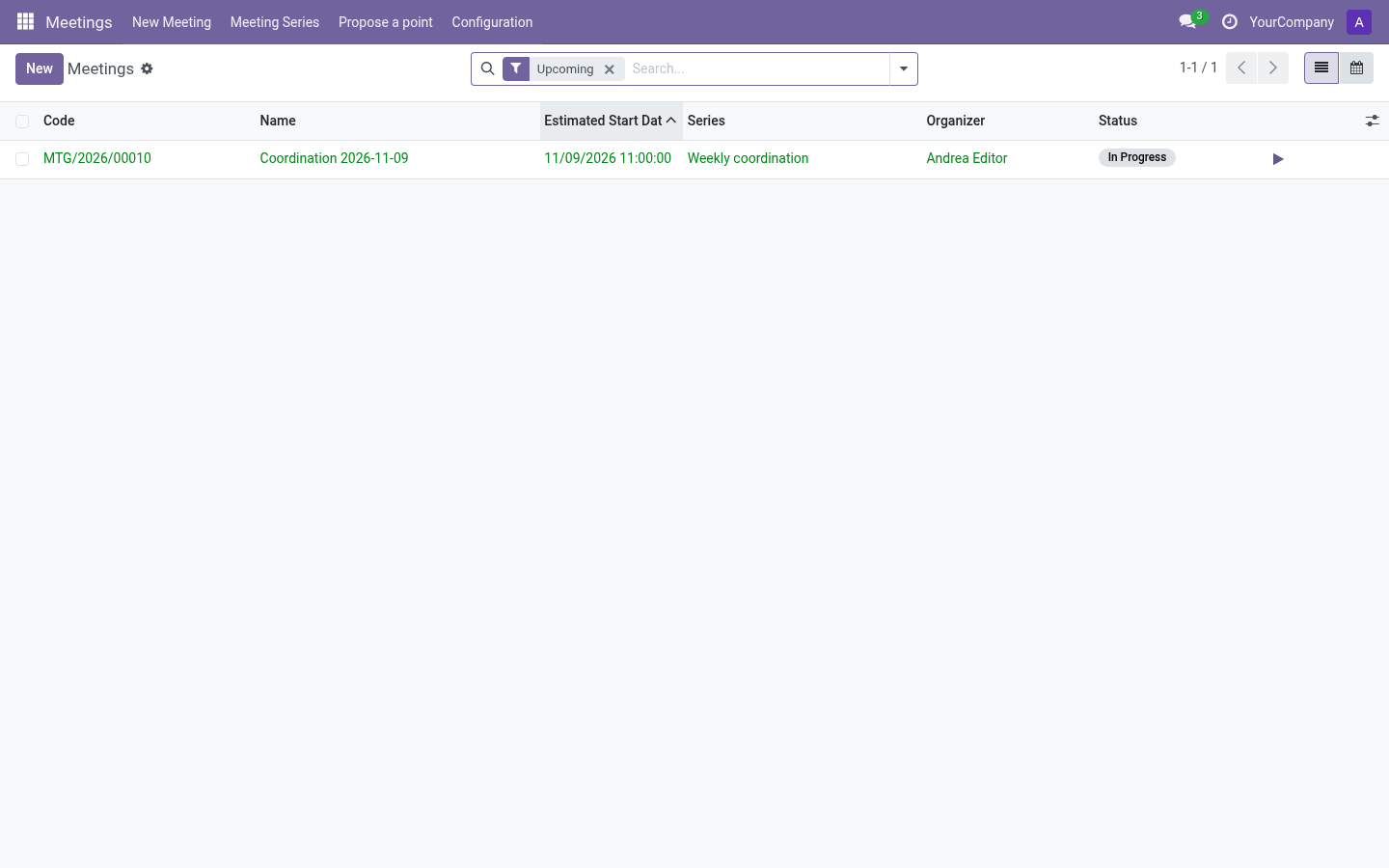
The guided wizard
The wizard walks six steps; Back/Next are free, and your edits are kept when changing series. Series defaults are applied automatically when you choose a series; there is no separate confirmation button.
- Series — pick one, or leave empty for a standalone meeting. Choosing a series applies its suggestions automatically; changing series refreshes those suggestions while keeping your edits.
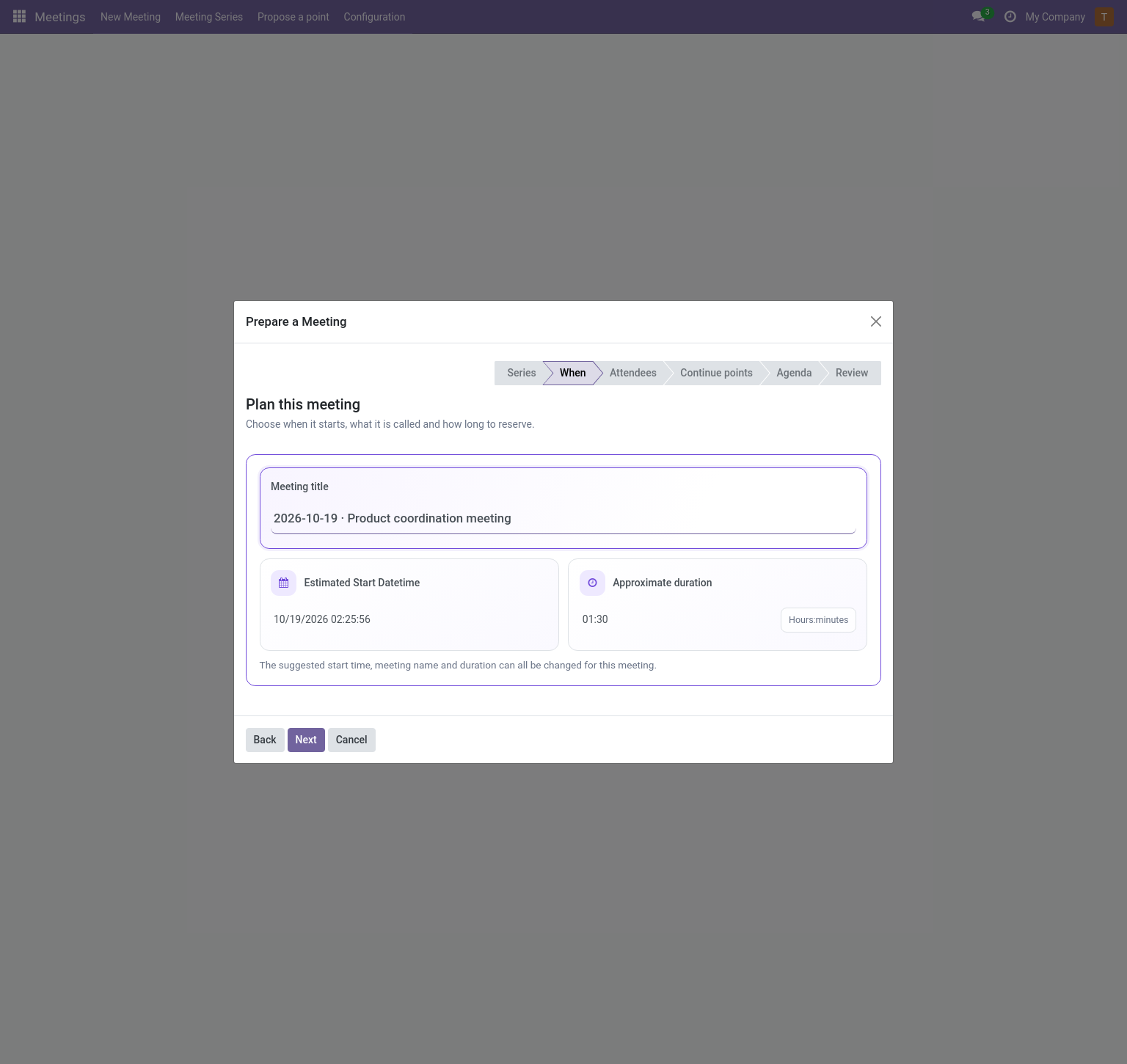
- When — start date/time, title (pre-filled with the series pattern
{date} {series}) and estimated duration. The date and clock icons mark the start and duration fields. Duration uses hours:minutes (1:00is one hour); the end time is derived. - People — attendees (pre-filled from the series).
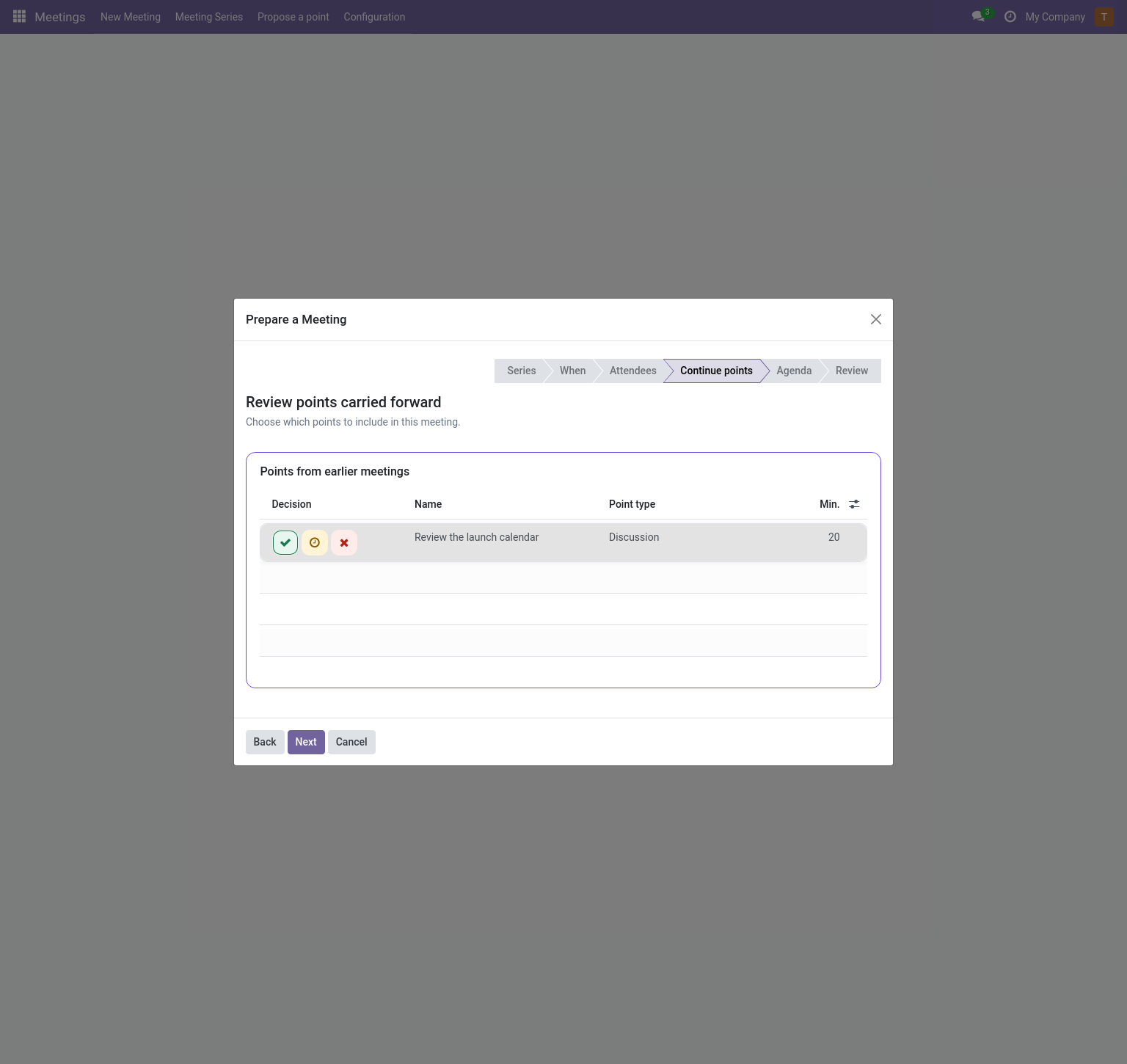
- Continuing points — if the series carryover policy is Review, points from previous meetings appear here with their origin and reason when available. Use the green check to Accept and include a point, the amber clock to Postpone it, or the red cross to Discard it permanently. Type, priority and estimated minutes are shown where available. If the policy is Automatic, unfinished points are already included.
- Agenda — add points now (or later). The selected-minutes estimate includes points you add and continuing points you accepted. It does not yet include structural points the series may add automatically.
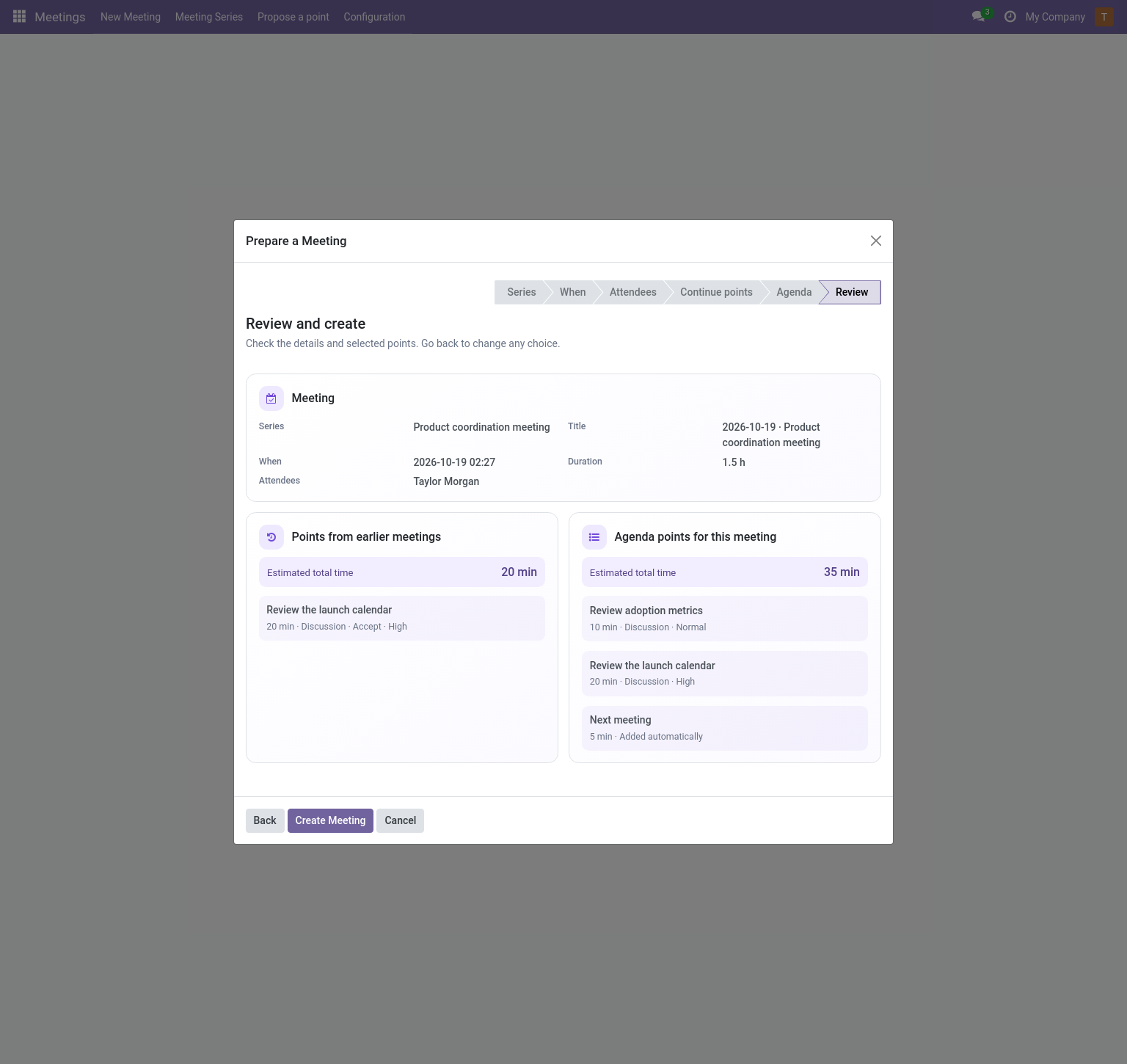
- Review — check the meeting details and agenda. Continuing points show their title with decision and other metadata below it, plus a separate total estimate. The agenda summary includes automatic structural points when the series creates them; Create Meeting finishes.
Tip: The wizard copies series defaults; it does not link to them. Changing the series afterwards does not rewrite the meeting.
The carryover step presents each earlier point with direct decision icons, and the final review shows separate minute totals for carried points and this meeting’s agenda, including structural points added automatically.
If the agenda exceeds the planned duration, the review shows a warning with the number of minutes over budget. This includes accepted points from earlier meetings and automatic points. Go back to When to extend the duration, or adjust the included points. The warning disappears once the agenda fits within the planned time.
Reading a meeting (reader track)
Readers open meetings from Meetings → Meetings (or the calendar). They see the agenda with outcomes, discussion notes, published dissents, agreements, follow-ups and — once approved — the minutes with a PDF download button on the Approved Revisions tab. Everything is read-only.
Adding points
On the meeting form, Add Point opens a focused dialog:
- Title — one clear line, this is what attendees read.
- Point type — selectable cards explain each type’s live behavior. The selected type becomes compact; click it again to show the choices and explanations (see catalogs).
- Description — rich text: context, links, documents.
- Planning — choose a priority (Low-key, Normal, High or Critical), use a minute preset or enter a custom estimate, and optionally set a deadline. The estimate is pre-filled from the series or company default.
- Responsible — choose near the top who will present the point. Related points can be linked below the planning fields.
- More options — click anywhere on this row to reuse an existing point or adjust its follow-up rules. Reusing a point keeps its title, description and type; you can change its responsible person here. Use Clear selected point to return to a new point.
Estimated minutes are pre-filled from the series, or from the company when the series uses the company default.
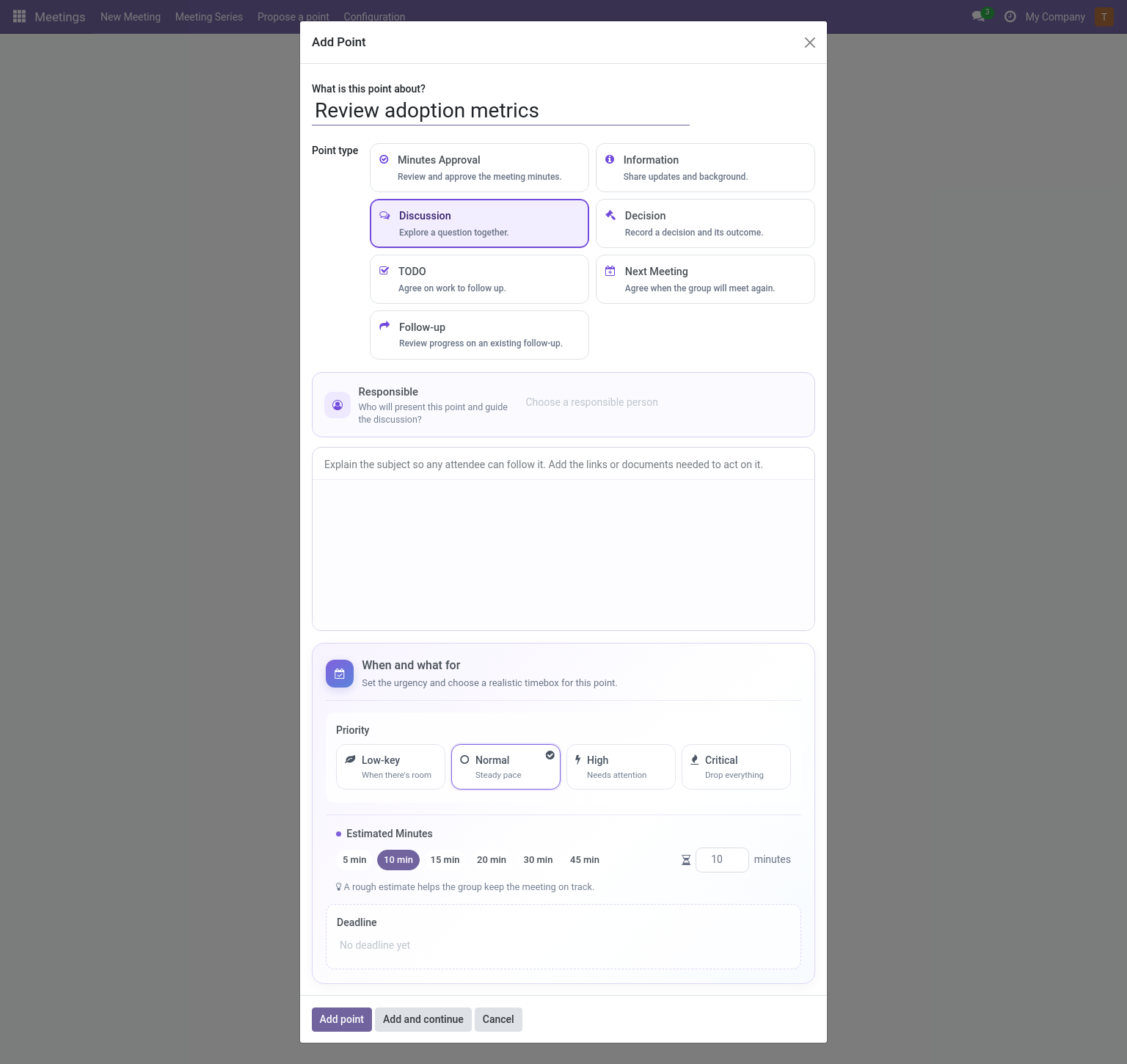
The Add and continue button chains several points quickly.
Note: Whether Add Point is available depends on the meeting state and the adding-points policy of its series — it disappears after the deadline and the server enforces it too.
On the meeting form, an estimated agenda over budget warning appears when the sum of agenda estimates exceeds the meeting duration. Adjust the duration or the agenda there.
Scheduling and series changes
- Schedule confirms the meeting (requires a start date) and publishes the calendar event.
- The series can be changed while the meeting is draft or scheduled and live execution has not started. Points shared with other meetings constrain the move.
- Cancel is available in draft/scheduled.
Access tab
Editors can grant reader/editor access on meetings they organize; managers can also change the organizer, secretary and access of any meeting.
Next: run it live → Live meeting.